A teleprompter does not fix writing — it exposes it. A sentence that looks perfectly reasonable in a document can feel awkward once it starts moving toward the camera: long clauses turn into breath problems, dense paragraphs make your eyes travel, and a transition that reads smoothly on the page can sound stiff out loud.
So the useful question is not only "How do I write a teleprompter script?" It is: what has to change between the draft and the version a person can actually deliver on camera? The example below keeps the message the same and changes only the format, one step at a time.
Start with a raw draft
Here is a deliberately ordinary paragraph:
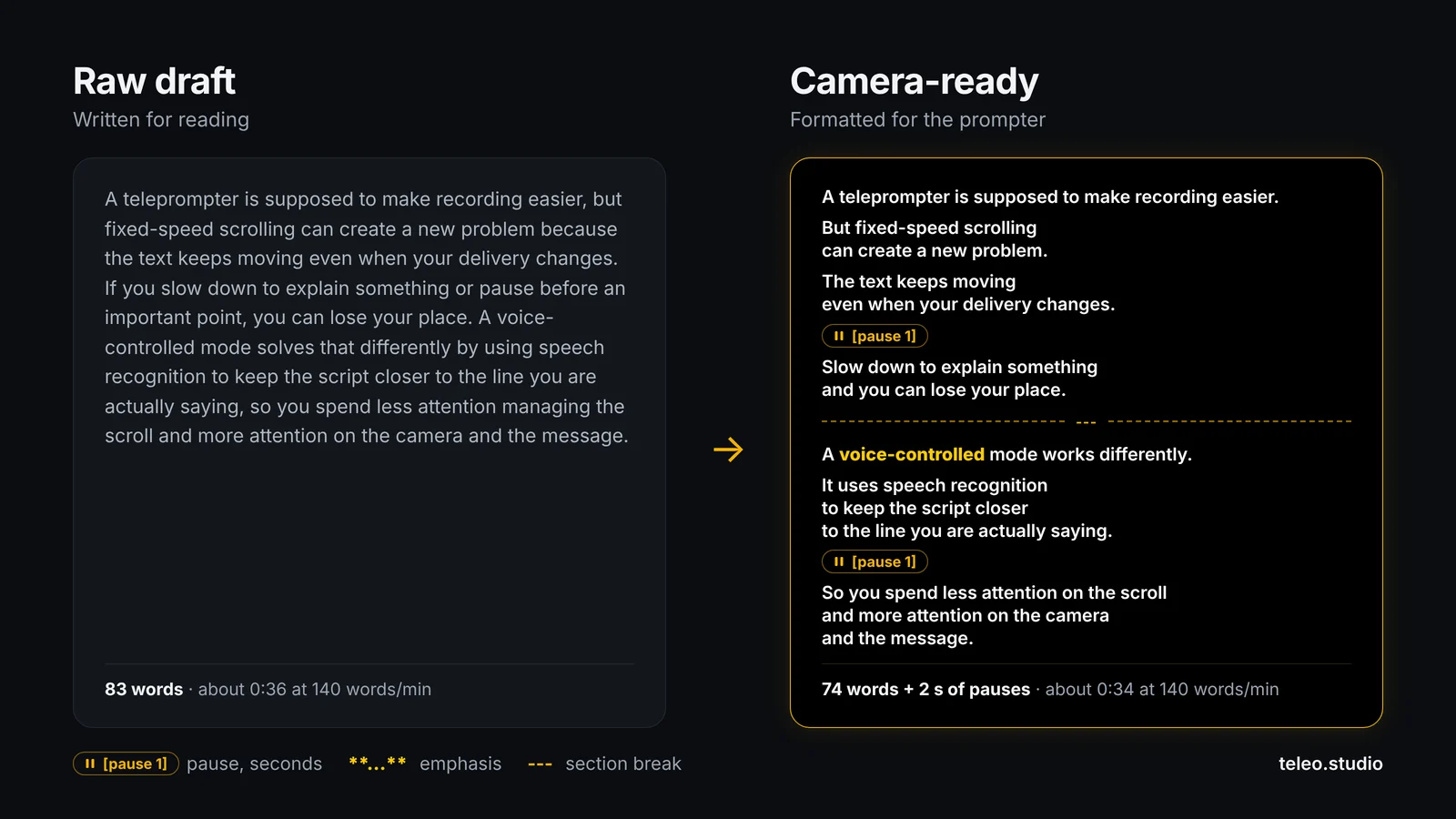
A teleprompter is supposed to make recording easier, but fixed-speed scrolling can create a new problem because the text keeps moving even when your delivery changes. If you slow down to explain something or pause before an important point, you can lose your place. A voice-controlled mode solves that differently by using speech recognition to keep the script closer to the line you are actually saying, so you spend less attention managing the scroll and more attention on the camera and the message.
The paragraph is not wrong; it is written for reading. It has 83 words, which at 140 words per minute is about 36 seconds of speech. More importantly, it gives the speaker almost no visual help: the main contrast, the natural pause and the conclusion are all buried inside one block.
Step 1: split the ideas where you would breathe
Do not change the message yet — change only the presentation. Put each idea on its own line and break long sentences where a speaker would naturally take a breath:
A teleprompter is supposed to make recording easier.
But fixed-speed scrolling can create a new problem.
The text keeps moving even when your delivery changes.
Slow down to explain something, and you can lose your place.
A voice-controlled mode works differently.
It uses speech recognition to keep the script closer to the line you are actually saying.
So you spend less attention on the scroll and more attention on the camera and the message.
This version is already easier to deliver because each block carries one idea. The point is not to make every sentence short. It is to stop the speaker from decoding sentence structure while also performing.
Notice that one clause disappeared along the way ("or pause before an important point"). Reading a draft aloud usually shows which words only make sense on paper, and the next step puts that pause back where it belongs — as an actual pause.
Step 2: add pauses only where silence does a job
A pause should have a reason: to give the viewer time to absorb a point, to separate a problem from its answer, to leave room for a cut, or to stop the next sentence from feeling rushed.
Teleo uses a simple marker for this — [pause 1], [pause 2] and so on, where the number is seconds. In auto-scroll mode the text stops at the marker for that long and shows a small countdown; in Voice Follow mode the text already waits whenever you stop talking, so the marker mainly reminds you where the silence belongs.
The text keeps moving
even when your delivery changes.
[pause 1]
Slow down to explain something
and you can lose your place.
Here the pause separates the problem from what comes next. Do not add a marker after every sentence, though: if the script is full of timing instructions, the speaker starts reading the instructions instead of the message.
Step 3: mark emphasis where the meaning changes
Some lines contain one word that carries the contrast — "The teleprompter should follow you," or "The problem is not the script, it is the timing." In Teleo you mark that word with double asterisks, like this, and it shows up highlighted on the prompter.
The formatting should answer one question: where would you naturally stress the sentence if you already knew it by heart? If five words in every paragraph are bold, the cue stops meaning anything.
Step 4: use section breaks for changes in thought
Longer scripts need stronger visual landmarks. A line with three dashes, ---, marks the moment you move from problem to solution, from explanation to example, or from one chapter to the next. In Teleo it adds a visible gap in the text, and each section also appears in the prompter's section menu, so on a retake you can jump straight back to the part you want to redo.
Slow down to explain something
and you can lose your place.
---
A voice-controlled mode works differently.
The break gives the speaker an obvious reset point, which is more useful than adding extra blank lines everywhere.
Step 5: set the line width for the camera, not the document
The same script can be easy or hard to read depending on the width of the text column. A very wide line makes your eyes travel horizontally, which viewers can notice; a very narrow one creates constant line breaks. There is no single number that is right for every phone, font size and distance, so start narrower than a normal document — around 6–8 words per line is a practical first test — and check it on a short recording. In Teleo, the Text width and Text position settings control this without editing the script itself.
The final formatted version
Here is the full example after formatting:
A teleprompter is supposed to make recording easier.
But fixed-speed scrolling
can create a new problem.
The text keeps moving
even when your delivery changes.
[pause 1]
Slow down to explain something
and you can lose your place.
---
A voice-controlled mode works differently.
It uses speech recognition
to keep the script closer
to the line you are actually saying.
[pause 1]
So you spend less attention on the scroll
and more attention on the camera
and the message.
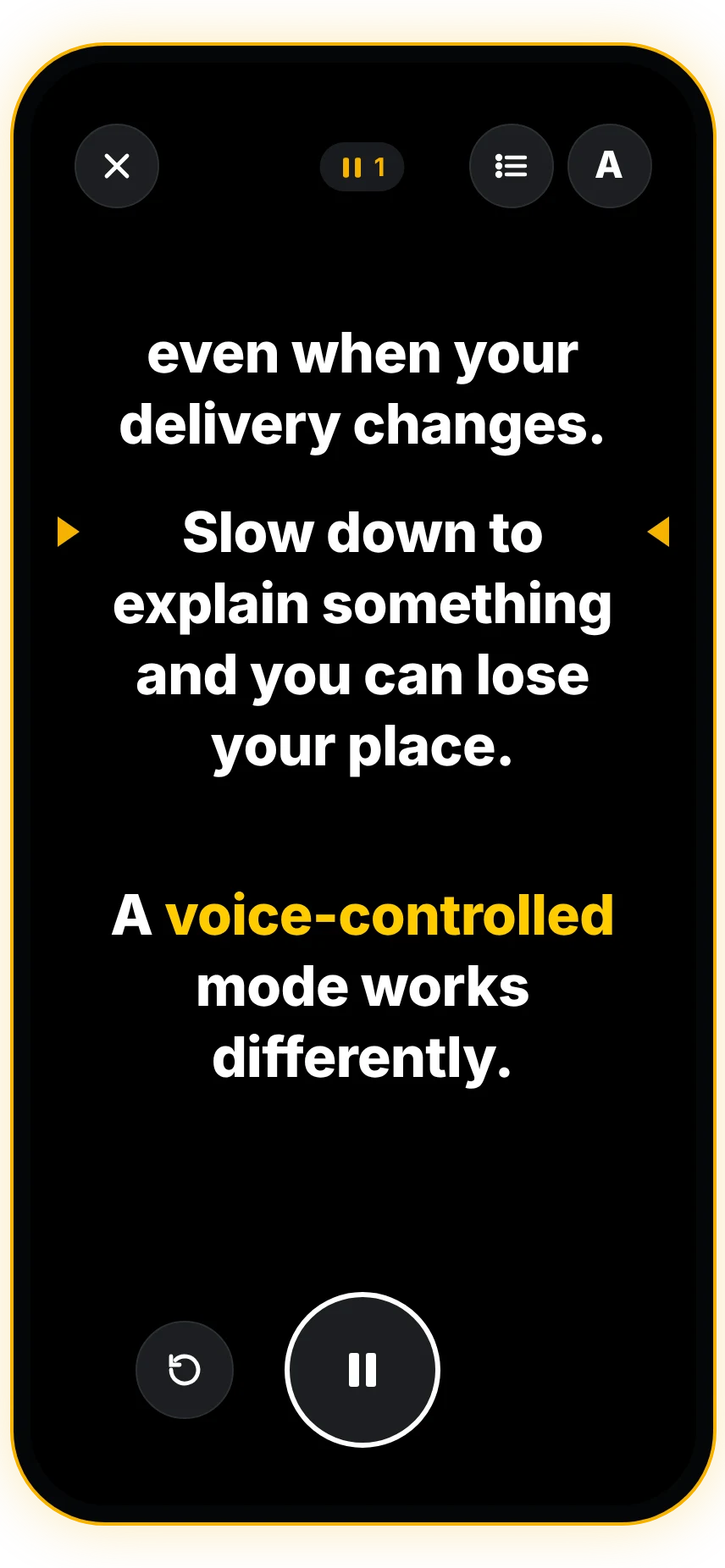
Nothing important was added. Most of the improvement came from making the structure visible to the speaker. This is how the same script looks inside the Teleo prompter: the emphasis is highlighted, the section break leaves a gap, and the pause marker itself is not shown — the text simply holds when it reaches it.
Check the runtime after formatting
Formatting changes the delivery time, which is why word count alone is not enough. We pasted both versions into Teleo's free online teleprompter at a 140 words-per-minute pace:
- the raw draft: 83 words, about 36 seconds;
- the formatted script: 74 words plus 2 seconds of marked pauses, about 34 seconds.
Cutting nine words saved roughly four seconds, and the two deliberate pauses gave two of them back. A slower explanation or a visual cut in the edit would add more.
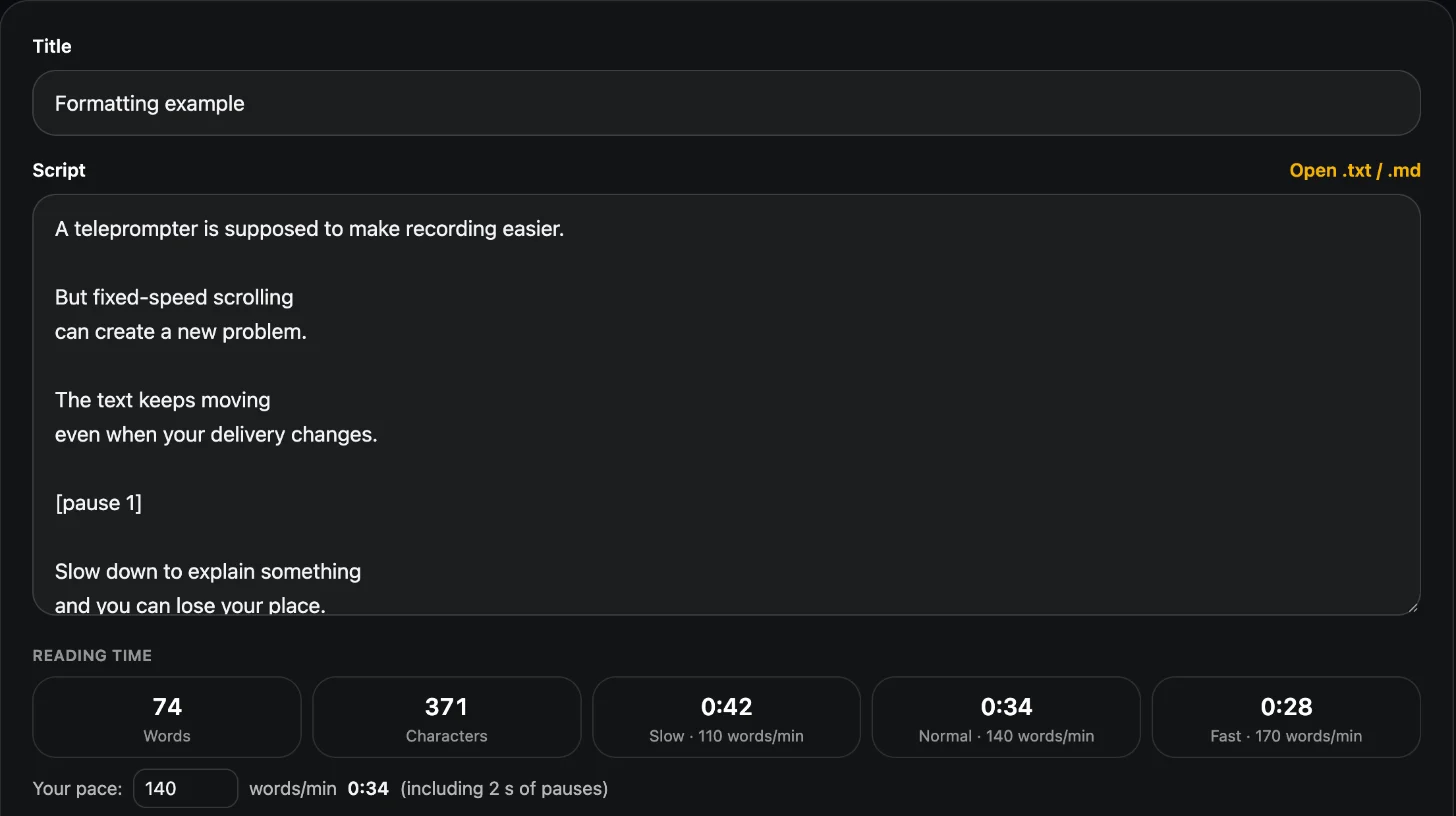
You can do the same check with your own script in the online teleprompter: it shows the word count, the estimated reading time at slow, normal and fast pace, your own pace, and how much time the pause markers add. Treat the estimate as a planning tool, then read the script aloud once — real delivery is the final check.
Numbers, names and technical terms deserve special treatment
A teleprompter script should remove ambiguity before the camera starts. If you might stumble over a person's name, a product name, an acronym, a foreign word, a price, a date or a technical term, write the version that is easiest to say. A spoken script may use "twenty twenty-seven" instead of "2027" if that matches the delivery you want. The audience never sees the script; it exists only to help the speaker.
Production notes do not always belong in the teleprompter
A common mistake is putting every camera instruction into the same text the creator is trying to read:
[SMILE]
[SHOW PRODUCT]
[LOOK LEFT]
[B-ROLL]
Here is the feature…
That may be useful in a production document, but it clutters the reading experience. Keep spoken copy, shot directions and fact-checking notes separate, and only put a production cue into the prompter if the speaker genuinely needs to see it during the take.
A practical formatting checklist
Before you load the final script, read it once and ask:
- Can I say each sentence comfortably?
- Does every paragraph represent one speaking unit?
- Are pauses intentional rather than decorative?
- Is emphasis limited to the words that actually matter?
- Do section breaks mark real changes in thought?
- Are names, numbers and difficult terms easy to pronounce?
- Are production notes kept out of the spoken copy?
- Does the measured runtime fit the real edit?
If any answer is no, fix the script before you touch the scroll speed. The best teleprompter setup cannot compensate for a script the speaker has to rewrite in their head while reading it.
Paste your draft into the free online teleprompter to check the timing, then send it to the Teleo app on your phone with a QR code and record. If your pace changes a lot during a take, Voice Follow lets the text follow your speech instead of a fixed speed.
Questions about teleprompter script formatting
How do you format a script for a teleprompter?
Put one idea per paragraph, break long sentences where you would breathe, mark only the words that carry emphasis, add pauses only where silence has a purpose, and use section breaks for real changes in thought. Then read it aloud once and check the timing.
How do you add a pause to a teleprompter script?
In Teleo, type [pause 2] on its own line, where the number is seconds. In auto-scroll the text stops at that point for two seconds and shows a countdown; in Voice Follow the text waits for you anyway.
How do you highlight words on a teleprompter?
In Teleo, wrap the word in double asterisks, like this. The word is highlighted on the prompter so you remember to stress it. Use it sparingly — a few highlighted words per script, not per paragraph.
How many words per line should a teleprompter script have?
There is no universal number. Around 6–8 words per line is a practical starting point on a phone; then test with a short recording and adjust the text width for your device, font size and distance.
How long does a teleprompter script take to read?
At a typical 140 words per minute, 100 words take about 43 seconds, plus any deliberate pauses. The online teleprompter calculates this for your exact script at slow, normal, fast or your own pace.